Building your Scorecard Structure
Building a scorecard is where you define exactly what will be measured during an evaluation. Each scorecard represents the standards, expectations, and behaviors that define quality within your organization. A well-built scorecard creates alignment between QA, coaching, and overall performance goals.
In FiveLumens, every scorecard is structured into sections and criteria that connect to a selected scoring model. This structure allows you to evaluate both customer experience and compliance items with consistency and accuracy.
This article explains how to build a scorecard, including adding sections, creating scoring criteria, selecting a scoring model, and linking your coaching form before publishing.
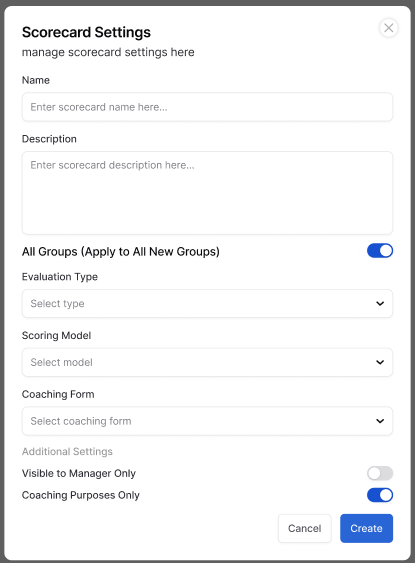
Scorecard Settings
After entering the name, description, and selecting the groups assigned to your scorecard, you will complete the remaining scorecard settings. These settings determine how evaluations are completed, scored, and used for coaching. There are five key settings to review before continuing.
- Evaluation Type
Choose between AI and Manual.- Manual evaluations are completed by a quality analyst who listens to the interaction and enters responses directly.
- AI evaluations are completed automatically by the system using an AI scorecard and AI grading instructions.
The structure is the same for both types, but the process differs.
- Scoring Model
Select which scoring model the scorecard will use. The options and definitions for each model are explained in the Understanding Scoring Models article. - Coaching Form
Each scorecard must be linked to a coaching form. The evaluation—whether completed manually or by AI—will be sent to the assigned manager to coach using the connected form.
If you have not created a coaching form yet, do so before building your scorecard. This is a required field for publishing. - Visible to Manager Only
When enabled, the evaluation will only be visible to managers. This also marks the evaluation as for coaching purposes only, meaning it still records a score but does not count toward quality or compliance metrics. - Coaching Purposes Only
This setting designates the evaluation for coaching use only. Like the option above, it still records a score but excludes it from the agent’s overall quality or compliance averages.
Note:
If the Audit scoring model is selected, these additional settings—Coaching Form, Visible to Manager Only, and Coaching Purposes Only—will not appear. The Audit model is used solely for data collection and does not generate scores or coaching actions.
Scorecard Builder
The scorecard builder is where you define the structure and content of your scorecard. Each scorecard is divided into two main sections: Meta Data and Scoring. For Audit scorecards, the Scoring section is renamed Audit, though it functions the same way.
The Meta Data section is used to capture information that is not part of the scoring process. Think of it as a space for internal notes or observations. Any data entered here is visible only to administrators and is never shared with agents.
The Scoring section is where evaluation criteria are added and scored according to the selected scoring model. This section determines how performance is measured and how results contribute to QA and coaching.
The next sections explain how the Meta Data and Scoring areas differ for Manual and AI scorecards.
Meta Data Comparison
The Meta Data section allows you to capture information that supports your QA process but is not part of the scoring. To add fields, go to the Action Items menu at the end of the Meta Data section header and select the field type you want to include.
Manual Scorecards
For manual scorecards, you can add up to five Meta Data types:
- Single Select
- Multiselect
- Small Text
- Large Text
- Date
Each field serves a specific purpose. Single Select and Multiselect function the same way they do in coaching forms. You can refer to the Create and Edit Coaching Forms article for a refresher.
The difference between Small Text and Large Text is simply the number of characters allowed when entering data during the evaluation. Date adds a date selector field.
When you select a Meta Data type, a modal will appear where you must enter the required information. Once complete, the field will populate to the scorecard.
Common uses for Meta Data include capturing details such as the main reason for a cancellation call, a unique ID associated with the interaction, or the date the interaction occurred. This information is for internal reference and is never visible to the agent.
AI Scorecards
For AI scorecards, the Meta Data section works differently. There are no predefined field types. Instead, when you enter a description in the modal, the system automatically adds it to the scorecard.
The key difference is that you must also provide AI instructions. These tell the AI what information to extract and how to present it. For example, if you want the AI to identify all reasons for cancellation mentioned during a call, your instructions should list possible reasons and specify the output format, such as “Return a list of reasons separated by commas.”
AI will only perform exactly what it is instructed to do. If directions or output formats are unclear, the AI may generate incomplete or inaccurate results. Always provide specific, detailed instructions and clearly define the desired output.
Scoring Comparison
The Scoring section is where you define the measurable behaviors and standards for your evaluation. It is divided into sections, which help you organize and categorize scoring criteria. For example, you might create separate sections for Sales Skills, Compliance, Call Opening, or Procedures.
To add a new section, click the Action icon at the end of the Scoring section header and select Add Section. Enter the section name and save it. You can edit or delete sections at any time using the same Action menu.
The order of sections does not matter during setup. You can move sections up or down in the scorecard at any time, and there is no limit to how many sections you can add.
Once a section is created, go to the Action icon for that section and select Add Scoring Criteria. This is where you define the criteria description, which appears to both admins and agents in the evaluation view.
At the bottom of each scoring criterion, you’ll find a toggle to designate the item as an Auto Fail. In FiveLumens, Auto Fails are set at the criteria level, not at the section level. This provides flexibility in scorecard design. For example, you may want a verbatim opening statement to be an auto fail placed at the start of the scorecard, following the natural call flow rather than being grouped in a compliance section.
After adding a scoring criterion, you can edit or delete it within that section at any time.
Manual Scorecards
For manual scorecards, you only need to enter the criteria description and determine whether it should be marked as an Auto Fail. Once added, the criterion will appear on the scorecard under the selected section, displaying the scoring model assigned to the overall scorecard.
AI Scorecards
For AI scorecards, the process is almost identical. You add the criteria description and choose whether to designate it as an Auto Fail. However, similar to Meta Data fields, you must also provide AI instructions that guide the system on how to evaluate and score that criterion.
These instructions tell the AI what to look for in the transcript and how to determine a Yes, No, or N/A response. The upcoming article, Creating AI Scorecard Instructions, will explain how to write precise and effective instructions to ensure consistent grading results.
Save Options
After you’ve built your scorecard and added all necessary sections, criteria, and settings, you can choose to either Save Only or Save and Publish your work.
Save Only
Selecting Save Only stores your scorecard in a draft state. This option allows you to continue editing, reviewing, or testing the scorecard before making it active. You can save as many times as needed while you build. Use this option anytime you are still working on the content, refining instructions, or waiting for supporting components like coaching forms to be finalized.
Save and Publish
Choosing Save and Publish makes the scorecard active and available for evaluations. Once published, the structure of the scorecard—such as sections, criteria, and scoring models—can no longer be edited or deleted, as it becomes part of your QA records.
However, scorecard settings (for example, group assignments, visibility, and coaching form linkage) can still be updated after publishing. This allows for flexibility in managing access and usage without altering the evaluation framework.
Before publishing, double-check every detail, including criteria accuracy, scoring model, and attached coaching form. If major changes are needed after publishing, the best practice is to clone the scorecard, make the necessary adjustments, and publish the updated version as a new active scorecard.
Building your scorecard is one of the most important steps in creating a consistent and effective QA process. The structure you design here defines how performance is measured, how insights are generated, and how coaching is guided.
Take the time to plan your sections, criteria, and AI instructions carefully before publishing. Remember, once published, only the settings can be changed—not the structure. A well-built scorecard creates alignment between QA, coaching, and continuous improvement, ensuring every evaluation leads to meaningful action and development.